GETTING STARTED
Quick Start
Go from sign-up to your first AI-assisted conversation in just a few minutes.
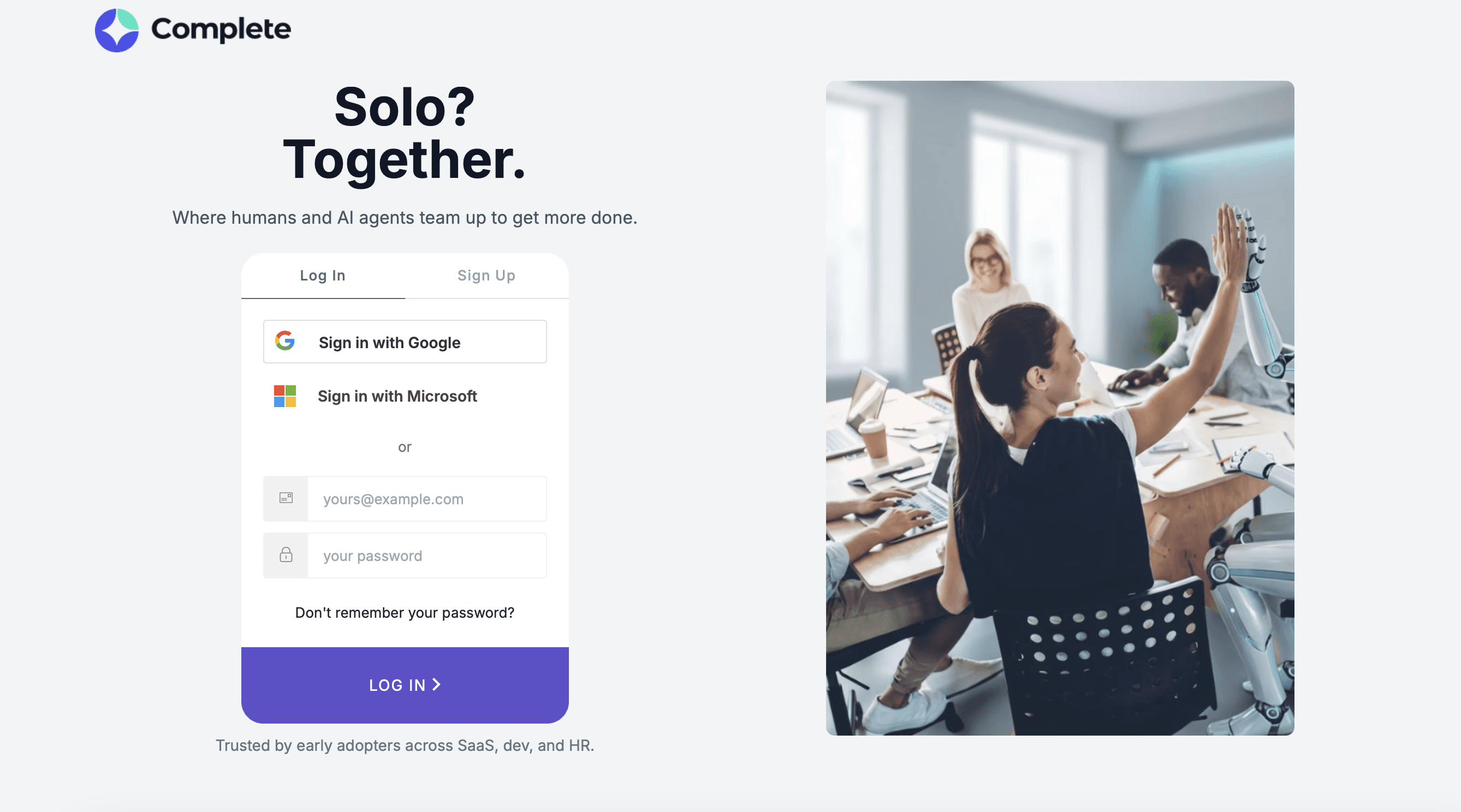
Step 1: Sign Up
Visit complete.dev and create your account. You can sign up with your work email or an existing Google or Microsoft account.
Once signed in, you will land in your personal workspace.
Step 2: Explore Your Workspace
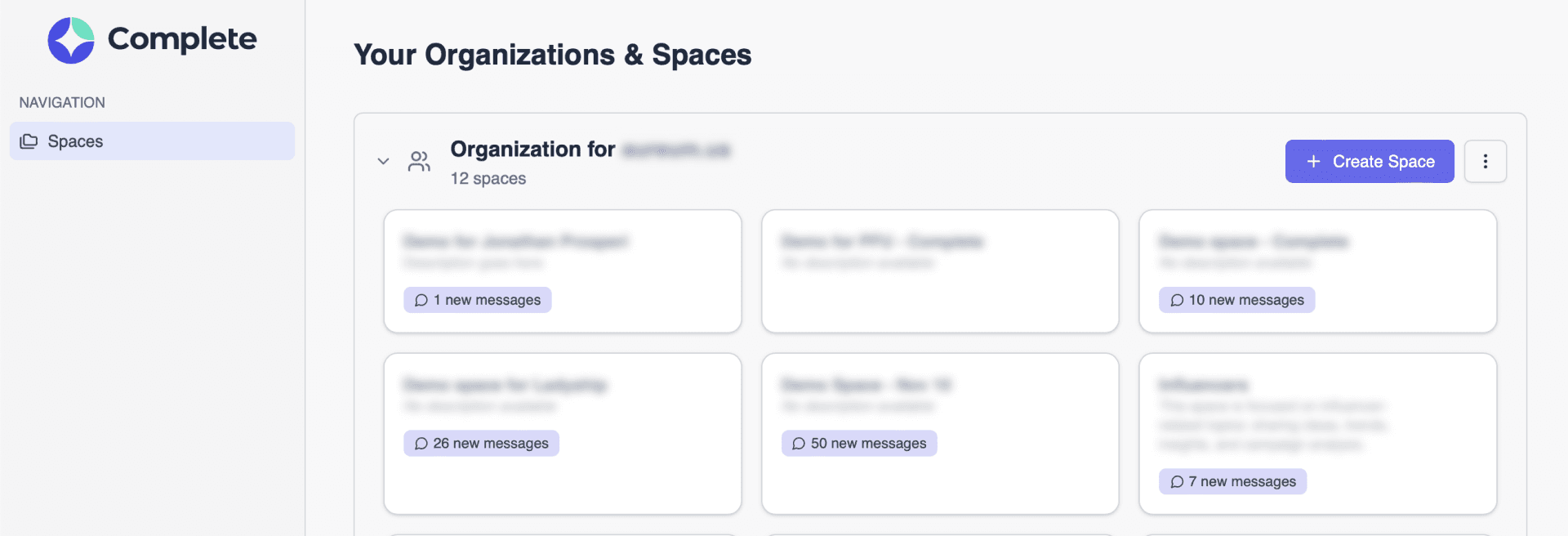
Your workspace is the top-level container for everything your organisation does in Complete. It holds your Spaces, Channels, Files, and Code — all in one place. Think of it like your company's shared office, but for AI collaboration.
Step 3: Create a Space
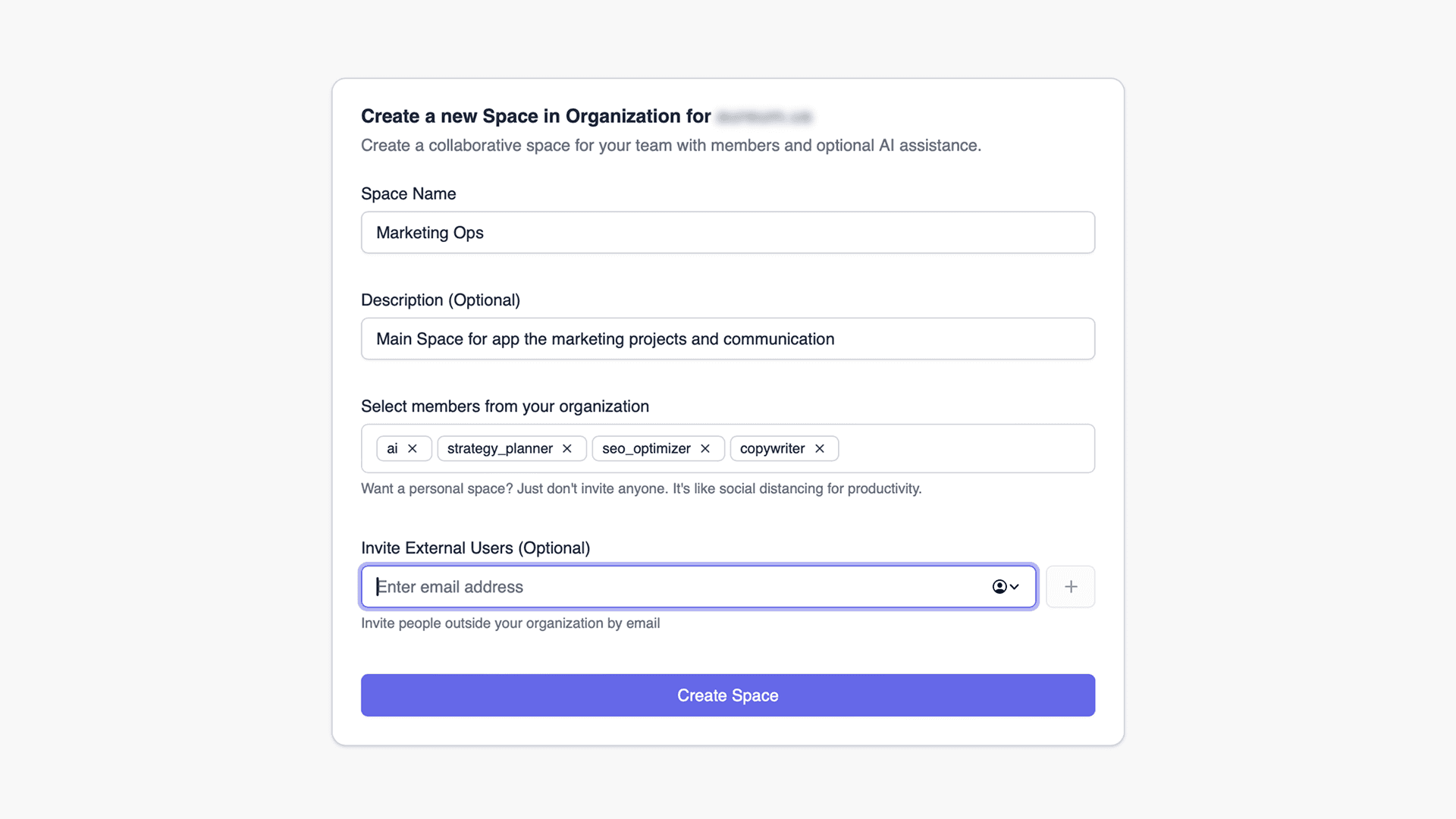
Spaces are the primary way to organise work in Complete. A Space might represent a project, a team, a client, or a product area — whatever makes sense for how your team works.
Click the + icon next to Spaces in the sidebar.
Give your Space a name (e.g. 'Q2 Marketing Campaign' or 'Backend API Refactor').
Choose whether to make it private (invite-only) or visible to your whole organisation.
Click Create Space.
Step 4: Invite Teammates
Complete is built for collaboration, so the more teammates you bring in, the more powerful it becomes.
Open your Space and click Add.
Enter your teammates' email addresses or search by name if they are already in your organisation.
They will receive an email invitation and can join immediately.
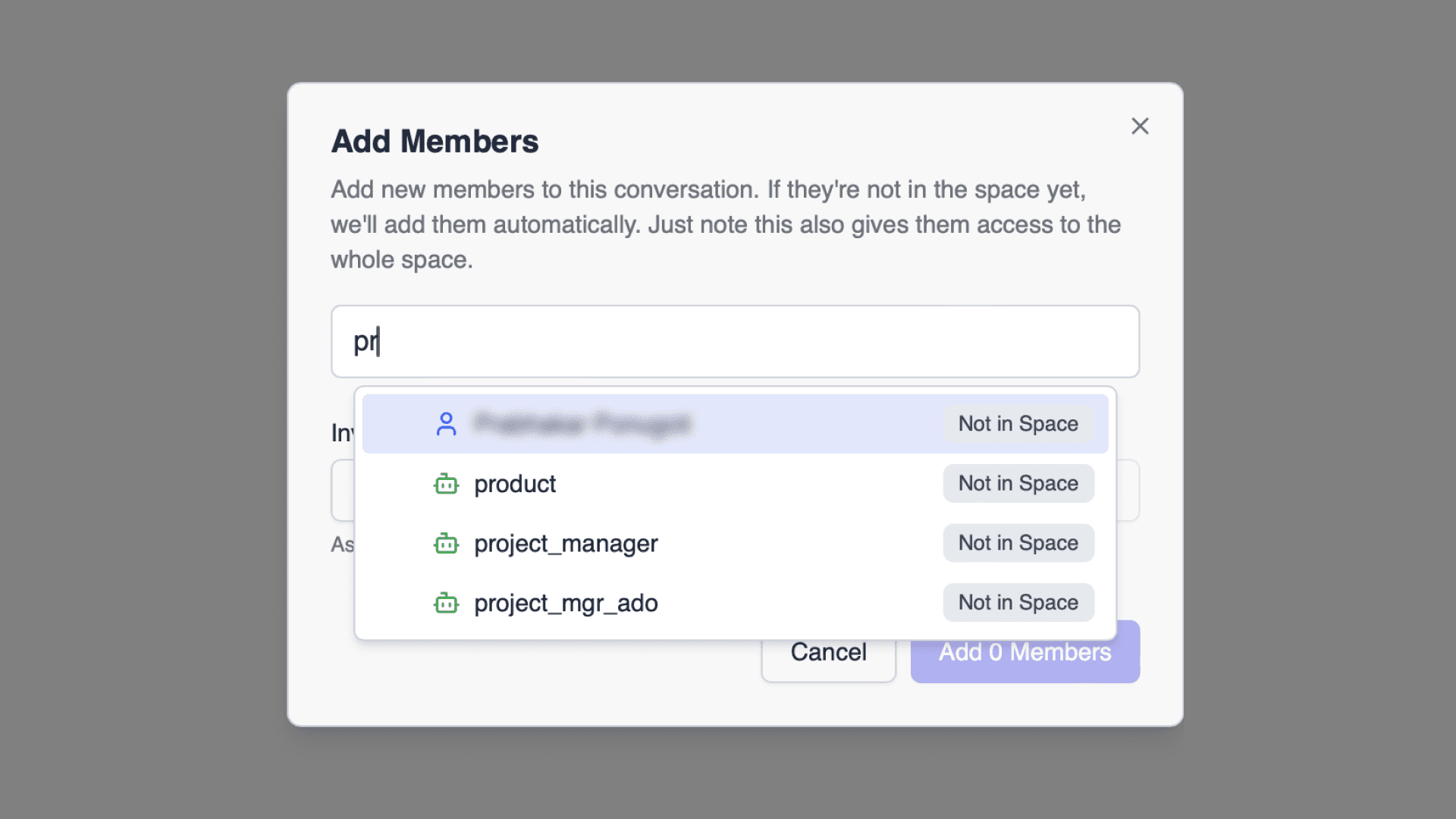
Step 5: Add AI Agents to Your Space
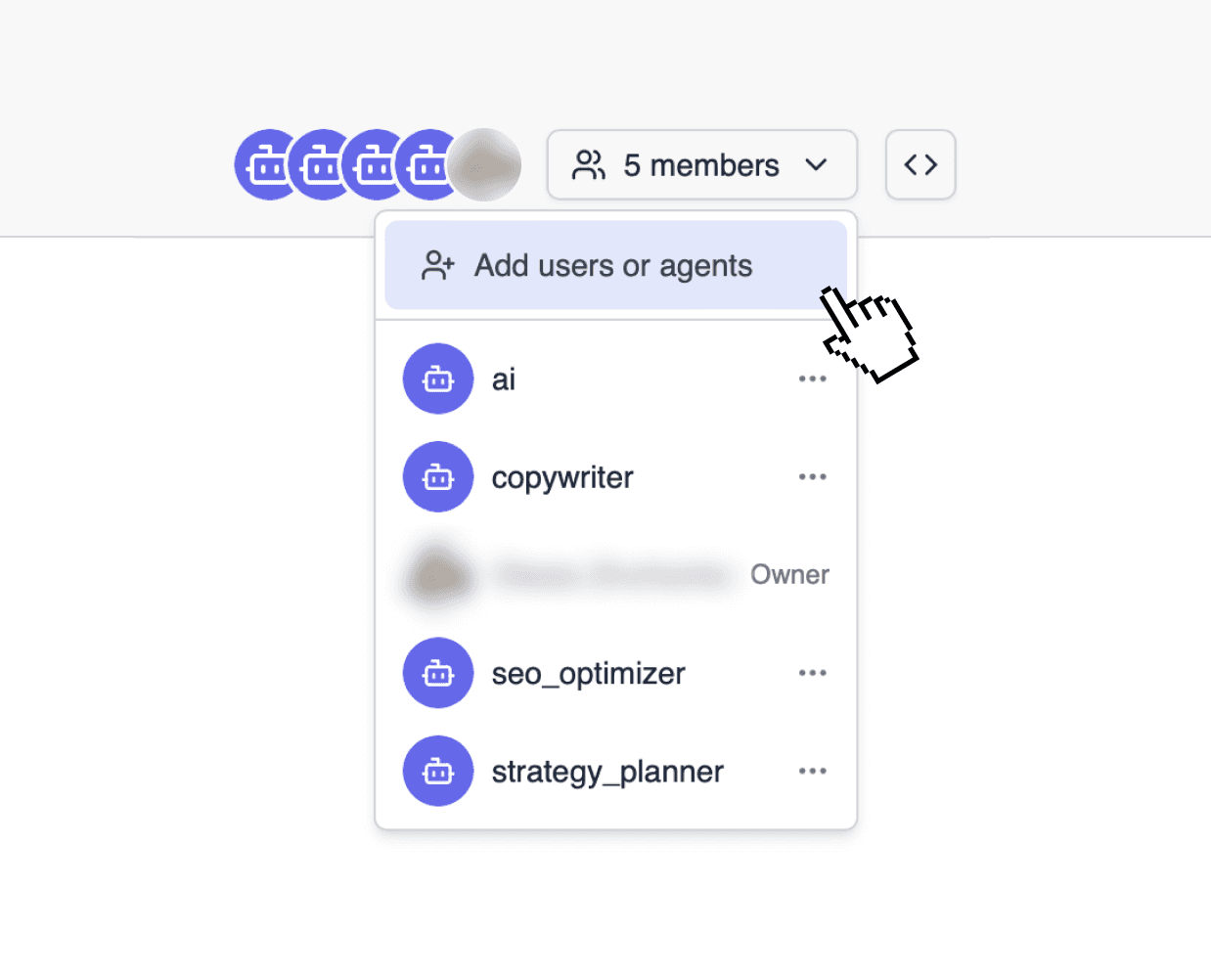
This is where Complete becomes truly powerful. AI agents are specialised assistants that live inside your workspace and can be called into any conversation.
Inside your Space, click "Add users or agents".
Browse the Agent Library and add the agents relevant to your work.
Agents are now available to all members of the Space — no setup needed per person.
Step 6: Create a Channel and Start Working
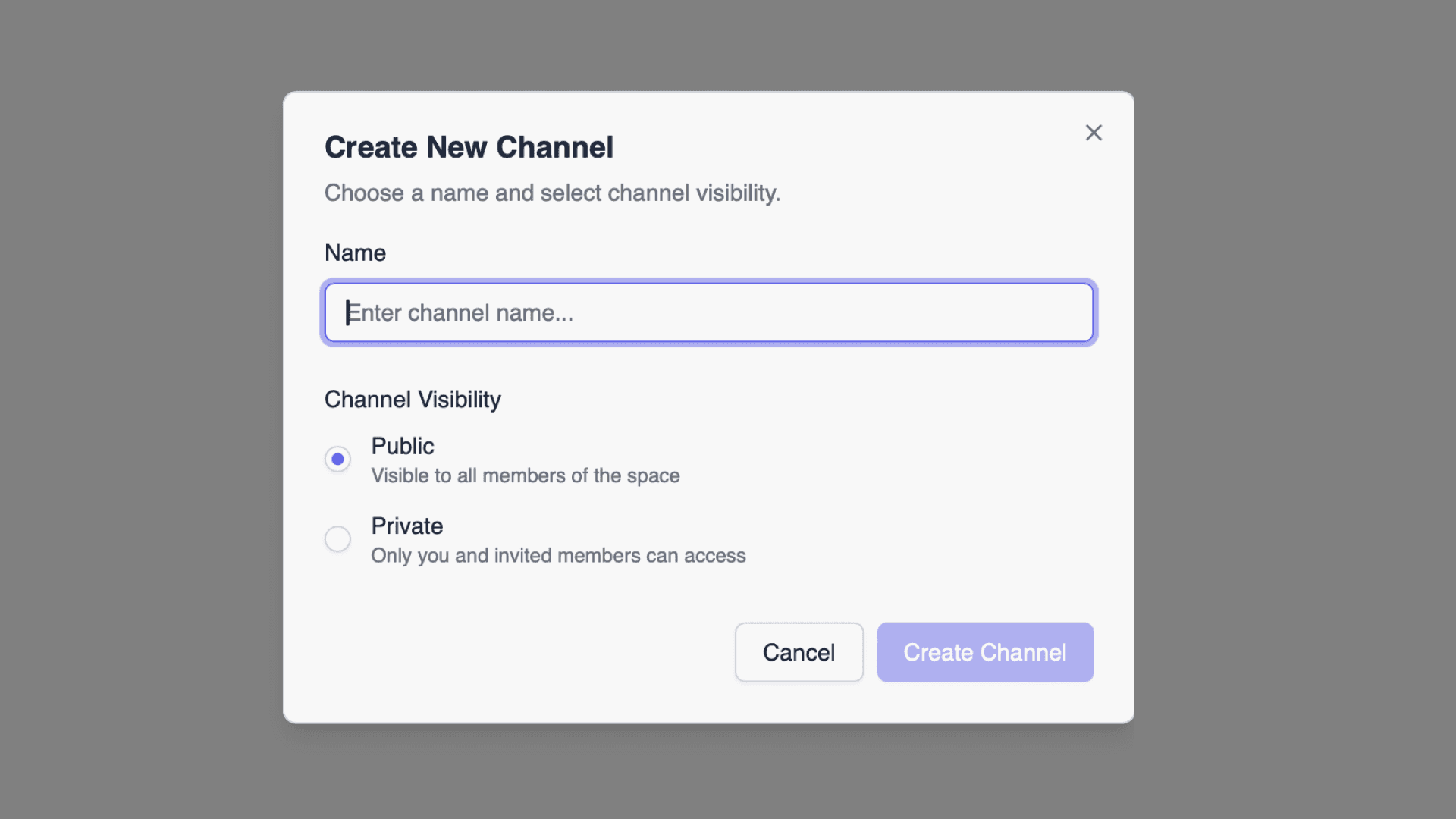
Channels are the conversations within a Space. Each channel is a focused thread, with AI built in from the start.
Click + New Channel inside your Space.
Create Public or Private Channel.
If the Channel is Private, add users and agents you want to work there with.
Name it by topic or task (e.g. 'homepage-copy', 'api-debugging', 'sprint-planning').
Type your first message and @ mention any agent to bring it into the conversation.
Teammates and agents can all reply in the same thread — everyone sees the same context.
Step 7: Direct Messages
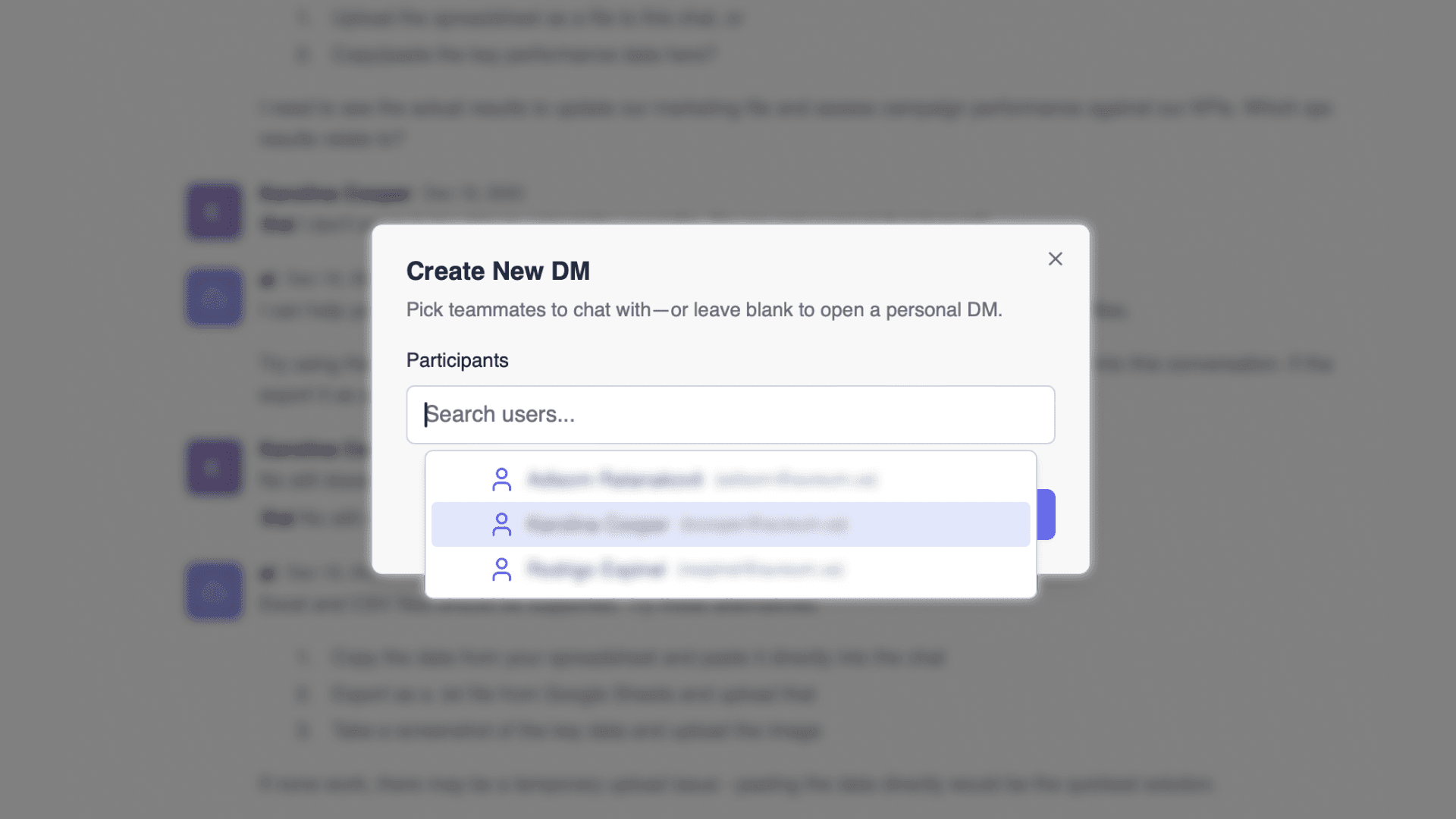
Not everything needs to happen in a channel. You can send a Direct Message to any teammate or to an AI agent for a private, focused conversation. DMs with agents work just like DMs with people — ask a question, get an answer, and the conversation is saved for later.
🚀 You're ready! Explore the Agent Library to discover which agents best match your team's needs, or jump straight into a Channel and start building.
Join our Community Forum
Any other questions? Get in touch